

Reviewing and completing a worker’s onboarding requires one of the following roles: Jobsite Admin, Site Safety Manager, Security Supervisor, Security, Medic Supervisor, or Editor.
Track onboarding progress
Use the onboarding screen to see all workers who are currently onboarding and those who have already finished.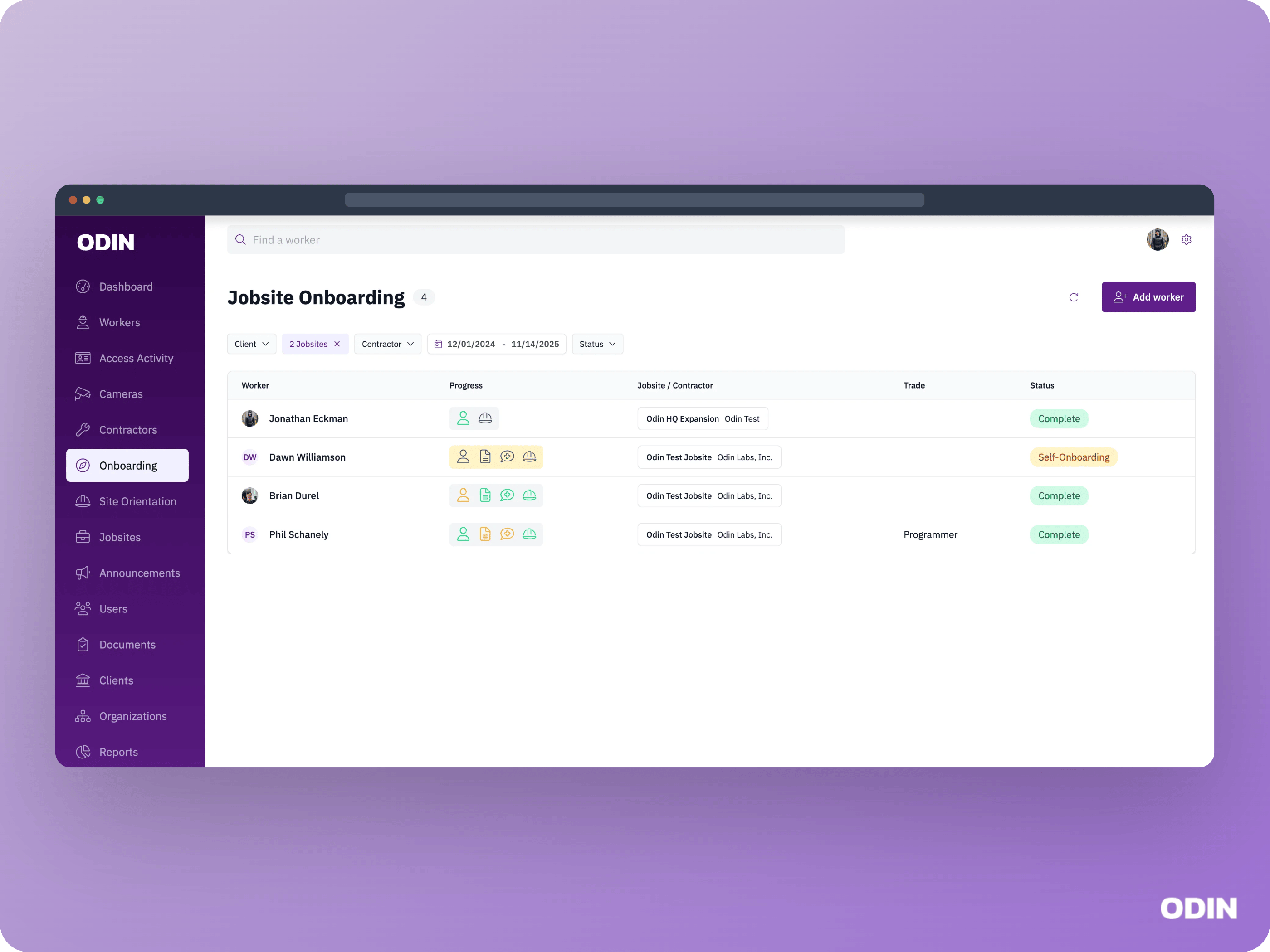
Review and complete an onboarding
When a worker’s onboarding is ready for review, it appears with a status of Not started in the review screen. To complete onboarding, review each section, correct or add additional info the worker did not provide, then click Save and Complete.The Save and Complete button must be clicked to complete the review of each onboarding section, even if no changes were made.
Skip the review
Onboarding review is required by default. If your jobsite is configured to auto-complete, onboarding will automatically move to the Complete status once the worker’s information is submitted, skipping the review step entirely. Contact Odin support if you need to adjust this setting.Review step examples
Depending on your onboarding design, you may see sections like the following during the review.Personal information
Review the worker’s personal details such as address, citizenship status, and contractor assignment. The fields shown depend on your jobsite’s configuration.Onboarding video acknowledgements
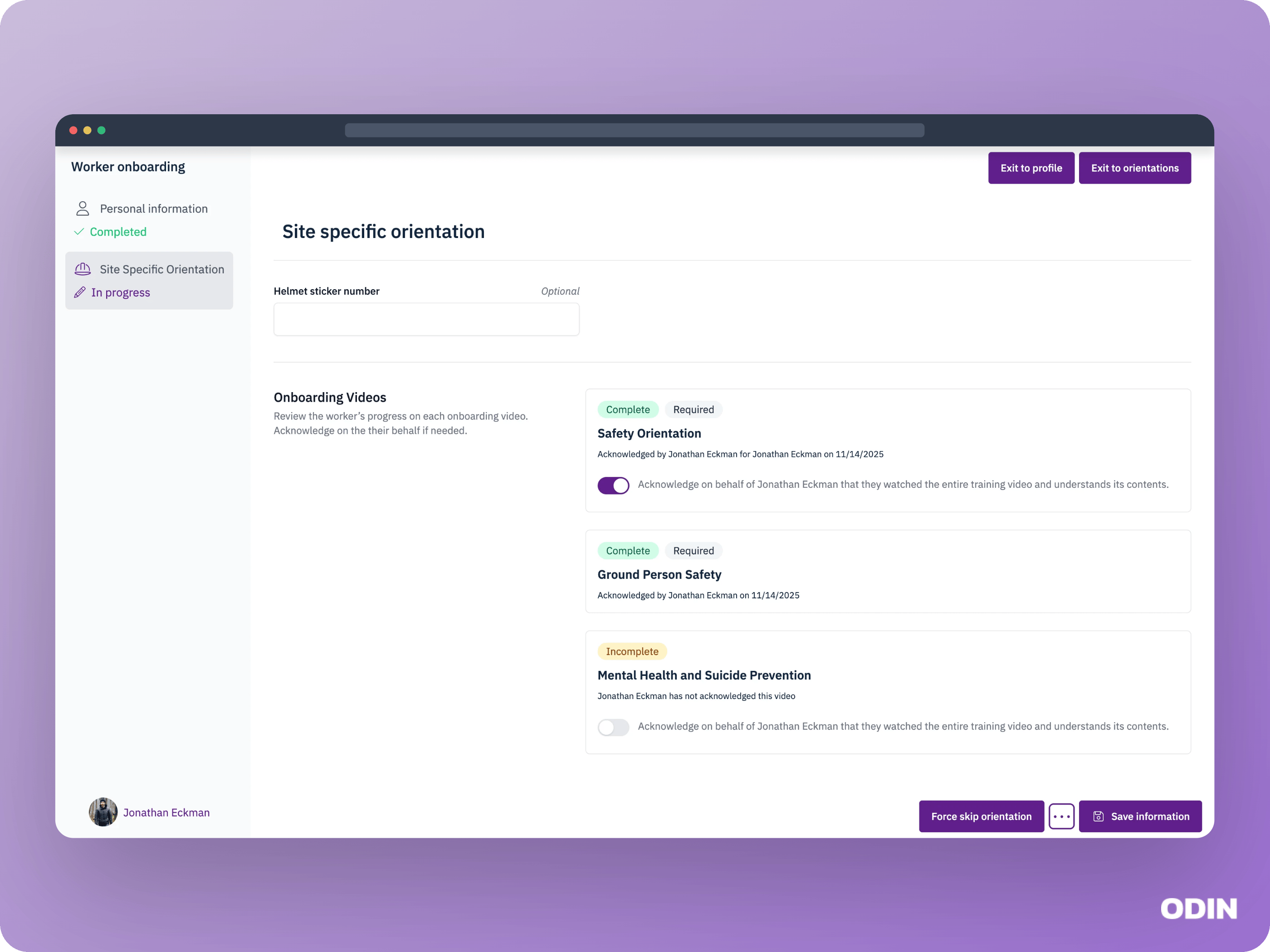
- The worker has acknowledged the video. No action is needed.
- The worker has not acknowledged a required video. You can acknowledge it on their behalf to complete onboarding.
- The worker has not acknowledged an optional video. You can acknowledge it on their behalf or leave it as is to complete onboarding.