- Print a new badge with the jobsite and badge name printed on the card.
- Register a badge by linking it to the number pre-printed on the factory card blank.
- Assign a badge to a worker.
- Return a badge from a worker back to the jobsite so it can be reused.
- Deactivate a badge if it is lost or damaged.
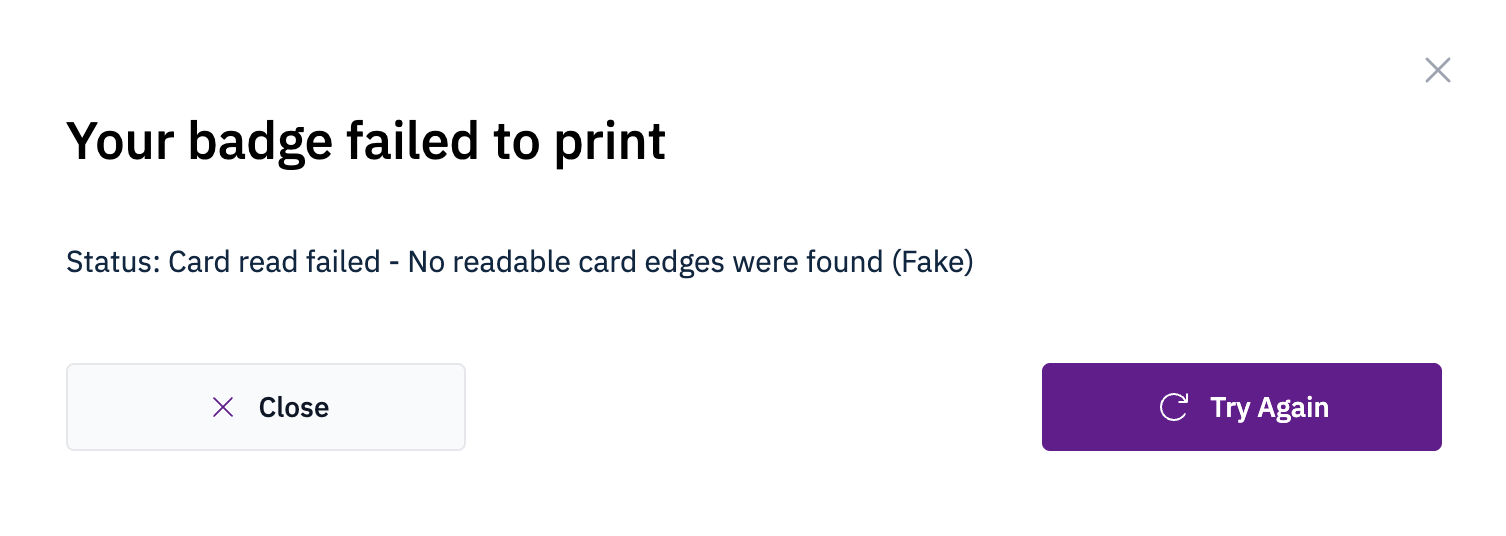
- Retry printing badges that failed the first time.
Managing temporary badges requires one of the following roles: Jobsite Admin, Site Safety Manager, Security Supervisor, or Security.
View your temporary badges
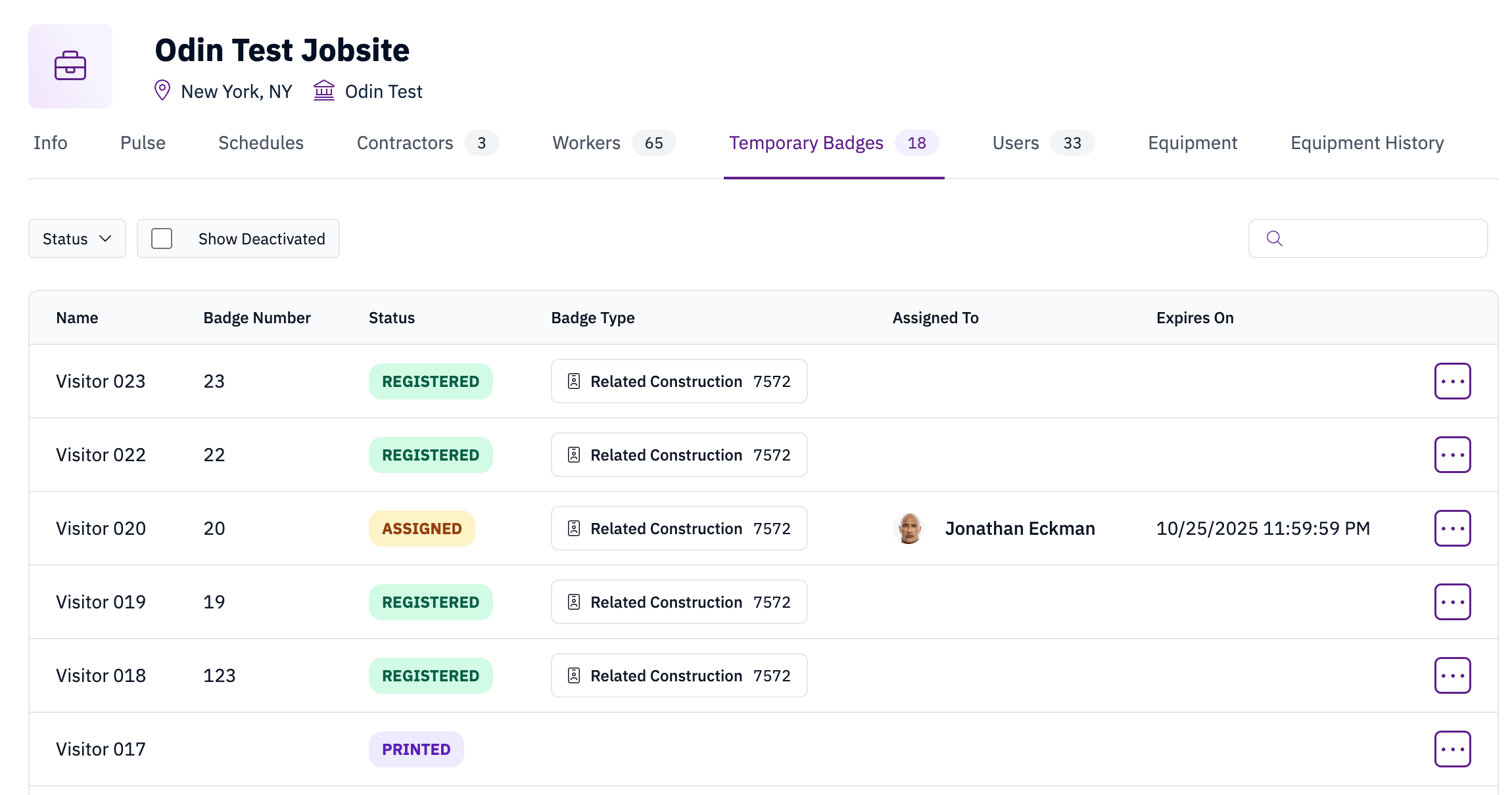
- Filter badges by status.
- Use the Show deactivated toggle to display deactivated badges. They are hidden by default.
Print a new badge
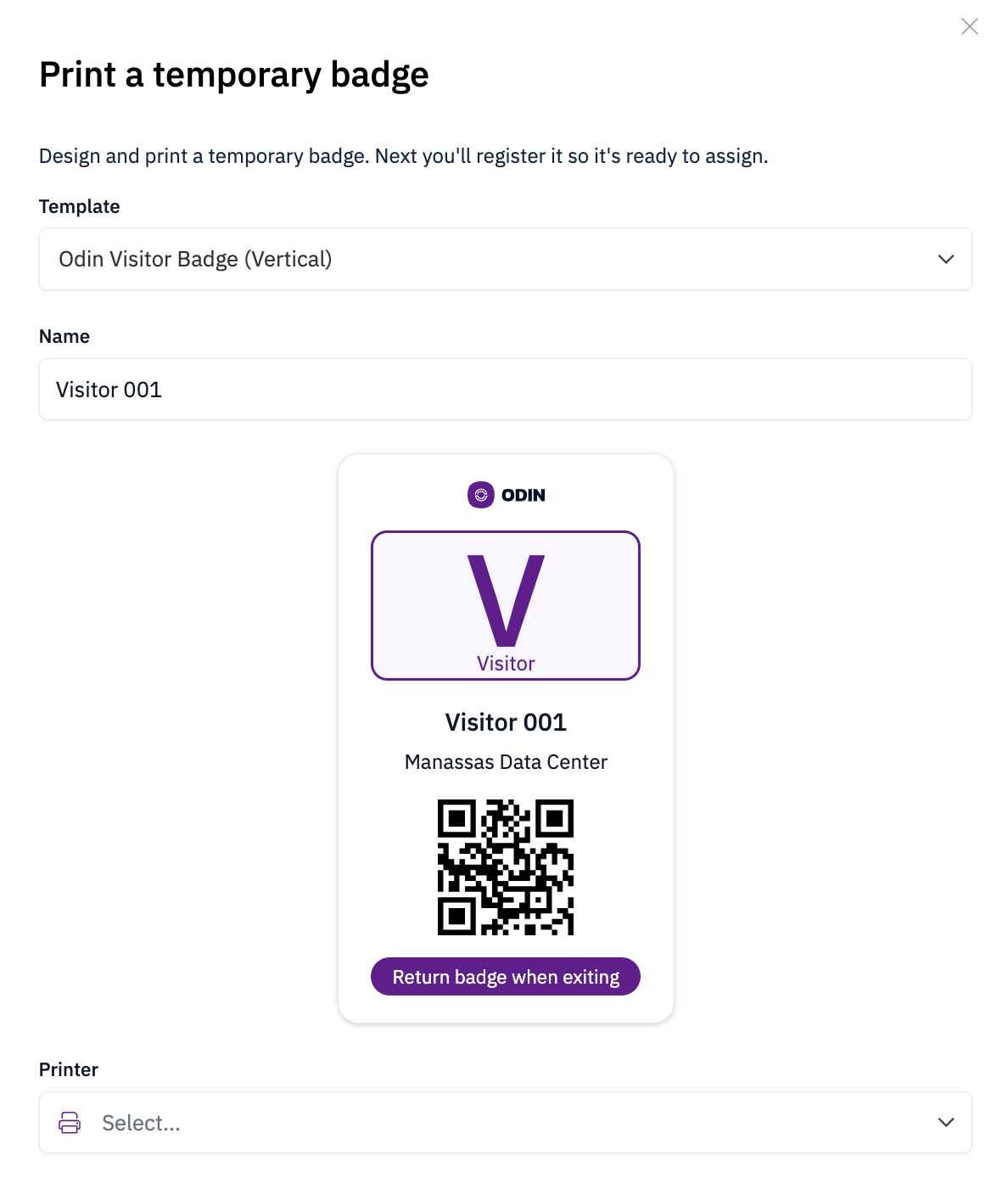
You can print a new badge from the + Add button on the jobsite’s Temporary Badges tab. Select a badge template to determine the layout and appearance of the printed card, then enter a name for the badge. A live preview shows how the badge will look with the selected template. If your jobsite has more than one printer configured, choose which printer to send the job to. The jobsite’s default printer is pre-selected.The preview shows how the printed badge will look, though there may be slight visual differences between the preview and the actual badge.
Badge templates
Your jobsite may have multiple badge templates available for temporary badges. The template determines the card layout, orientation, and label. Templates are configured by your CSM during project setup. If your jobsite has a default template, it will be pre-selected when you create a new badge.Your jobsite needs a printer and at least one badge template configured before you can print temporary badges. If neither is set up yet, contact Odin support to get this configured for your site.
Register a badge
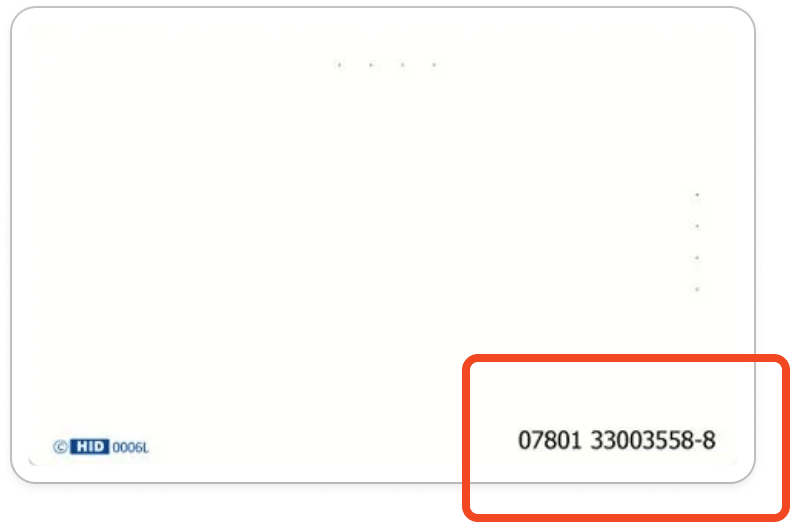
Once a badge has been printed, it must be registered in the system so it can be recognized and used on the jobsite. Registration requires two pieces of information: the card number and the card format.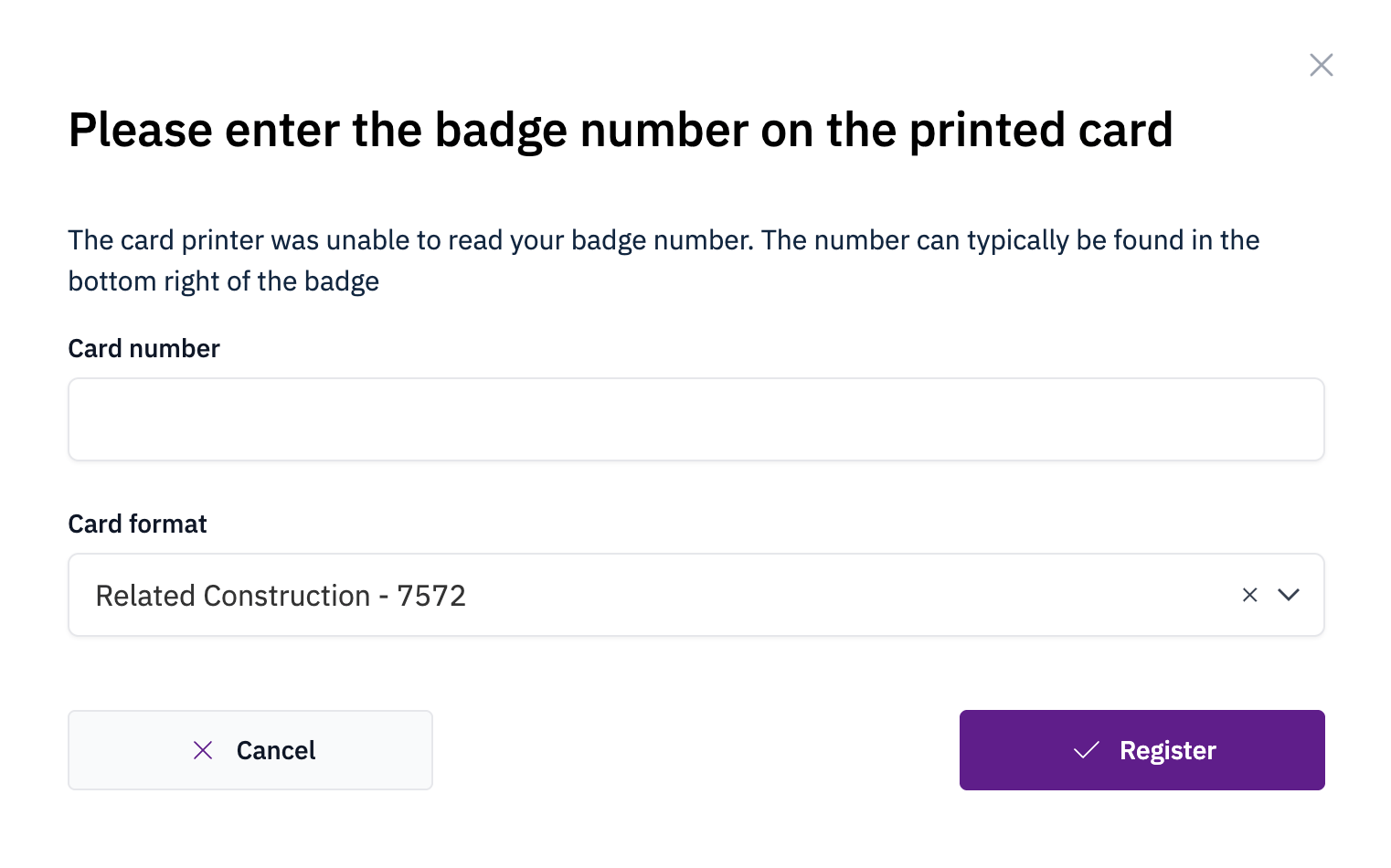
Assign a badge
Once a temporary badge has been registered, it can be assigned to a worker. Assignment grants the worker access to the jobsite until the badge expires.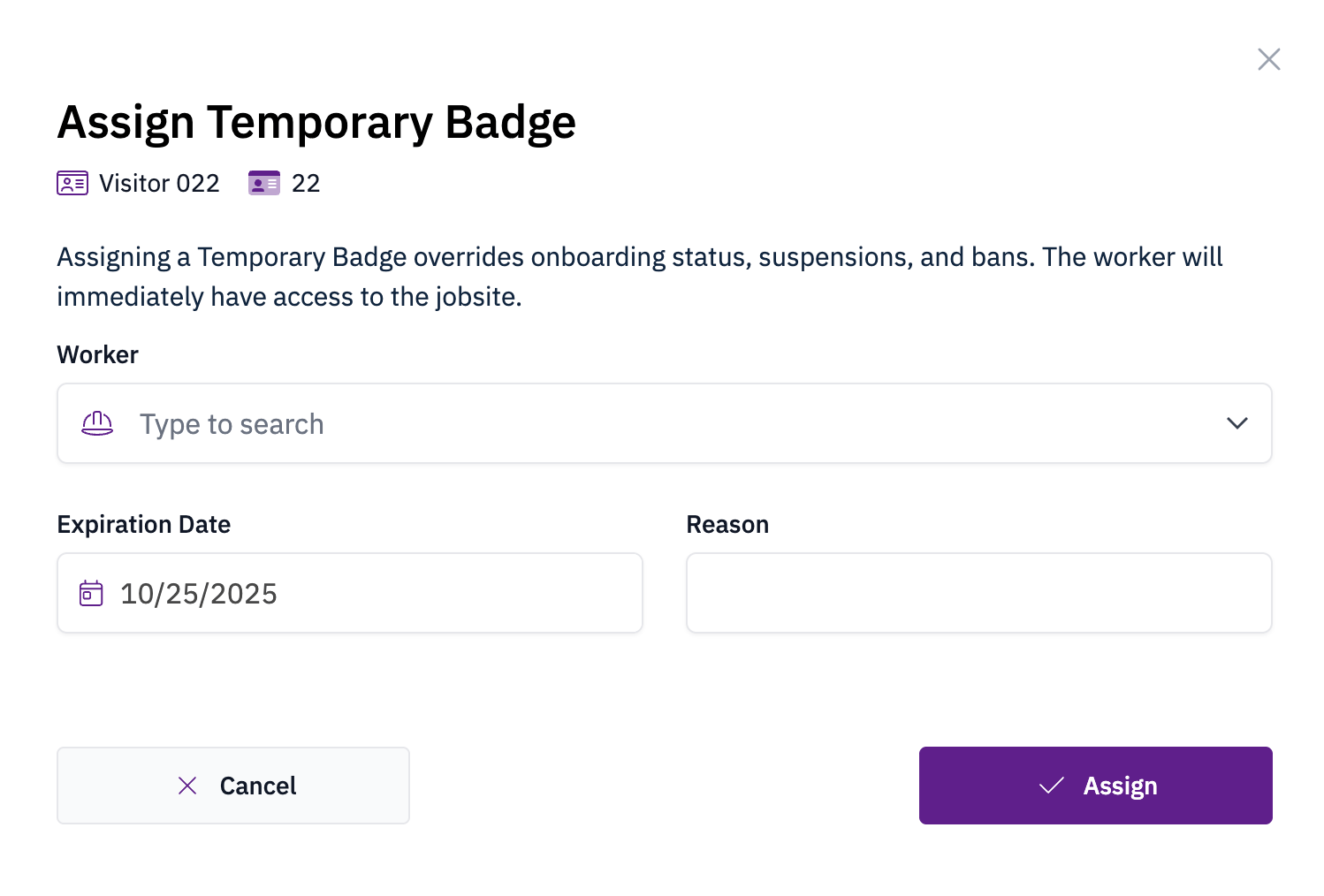
- A badge can only be assigned to workers who are already assigned to the same jobsite as the badge.
- Workers can be searched by name, phone number, trade, job title, or quick code.
- When the assignment expires, the badge will remain linked to the worker but will no longer provide jobsite access.
Reassign a badge
If the worker was previously assigned that badge, the system will prompt you to reactivate the existing assignment.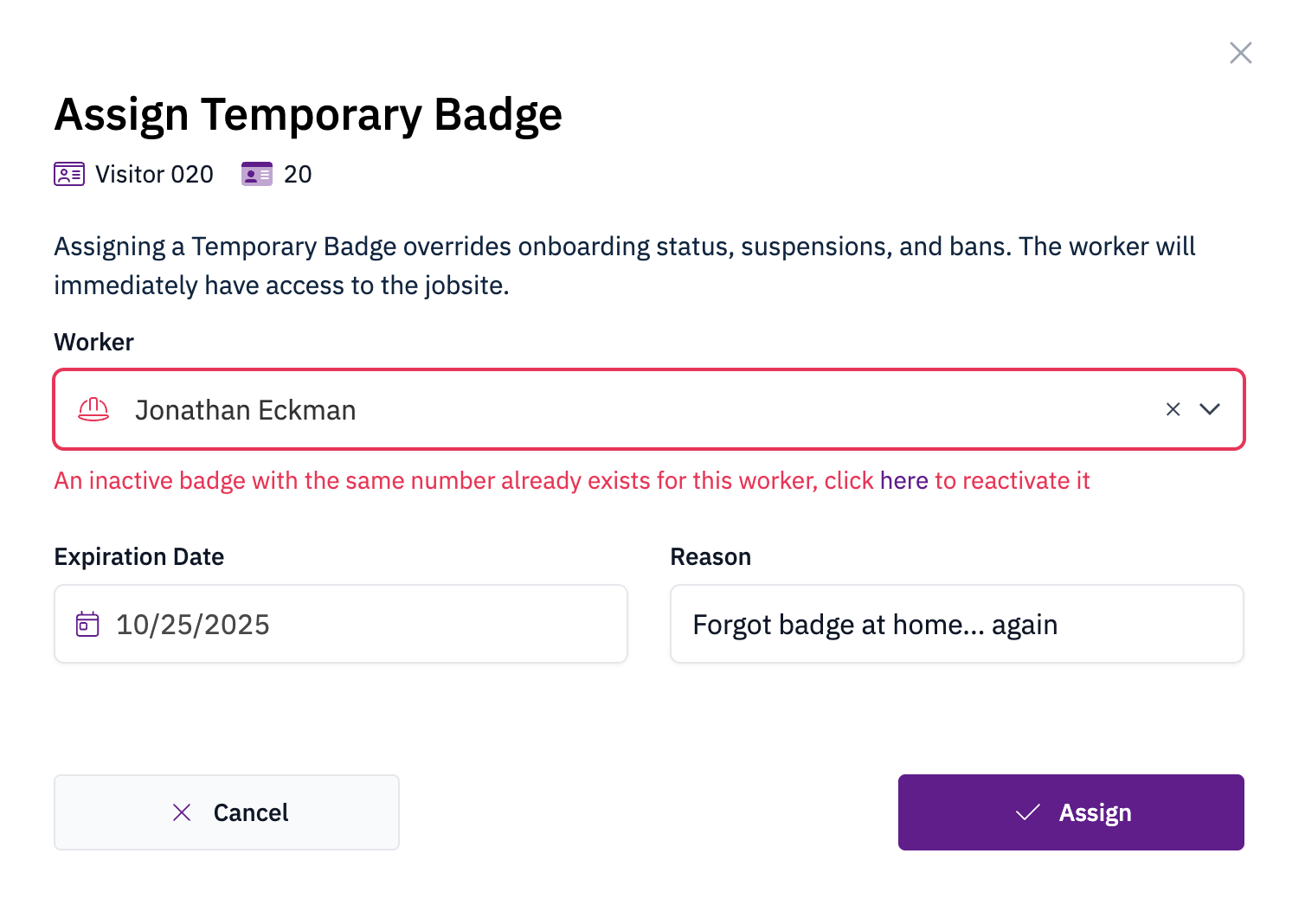
Assign to a worker with an existing badge
If a worker already has other badges assigned to them, whether temporary or permanent, those badges will be automatically deactivated when a new badge is assigned. This ensures each worker can only have one active badge at a time for jobsite access.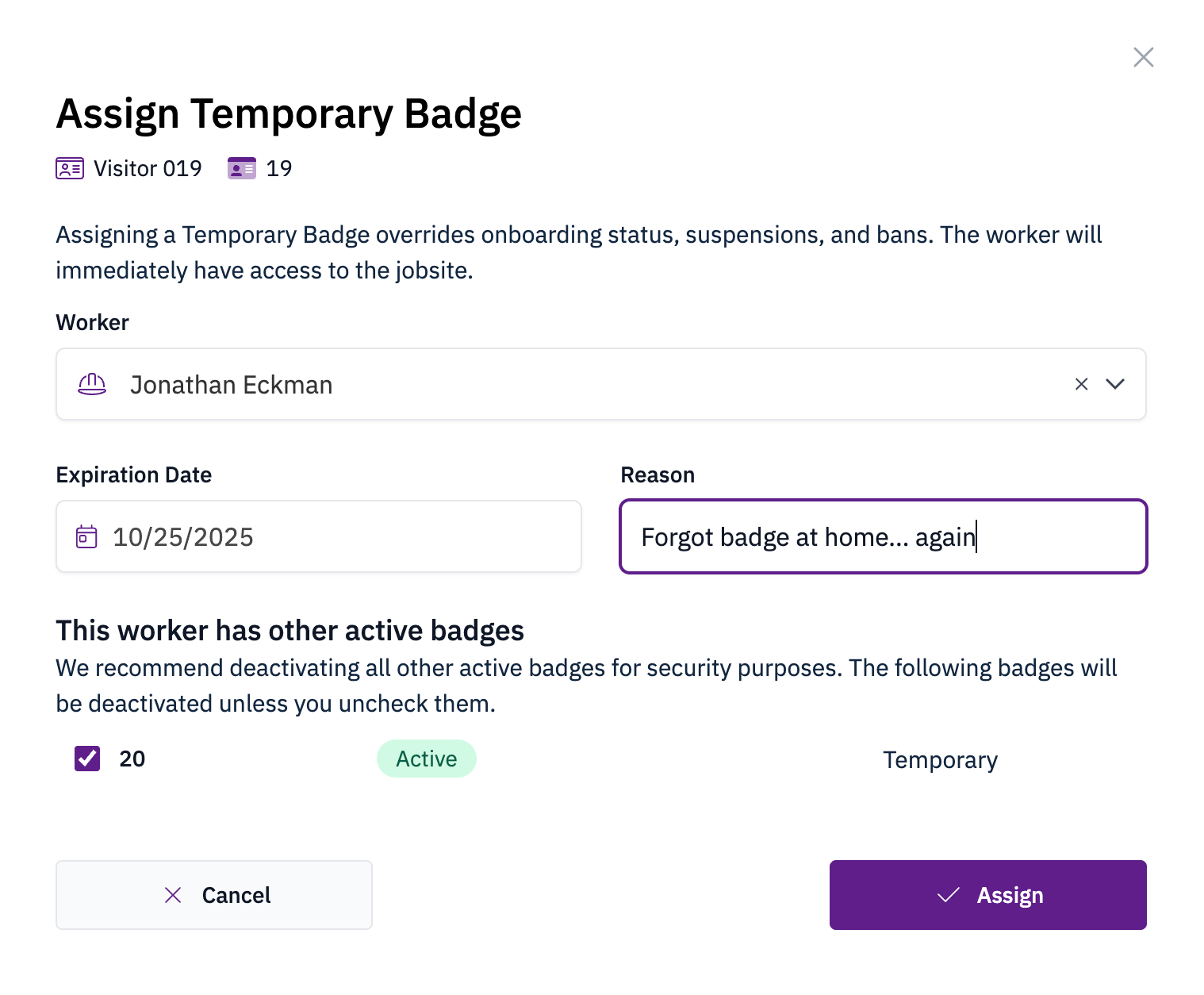
Extend the expiration date
To extend access, return the badge and then assign it to the worker again with a new expiration date.Return a badge
Returning a badge removes it from the worker, revokes their temporary access, and places the badge back into the pool of available temporary badges for reuse.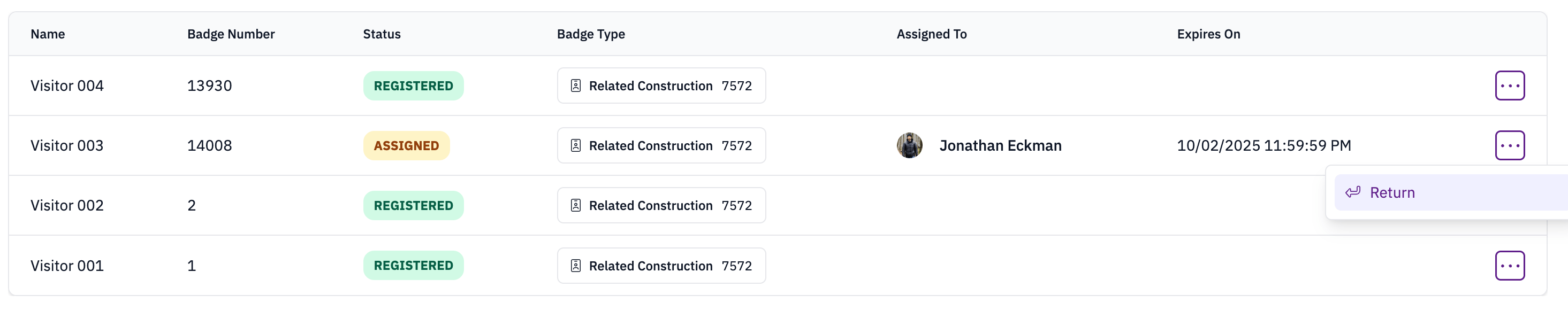
Deactivate a badge
A registered badge can be deactivated, removing it from the pool of available temporary badges. You may need to do this if the badge is lost or damaged.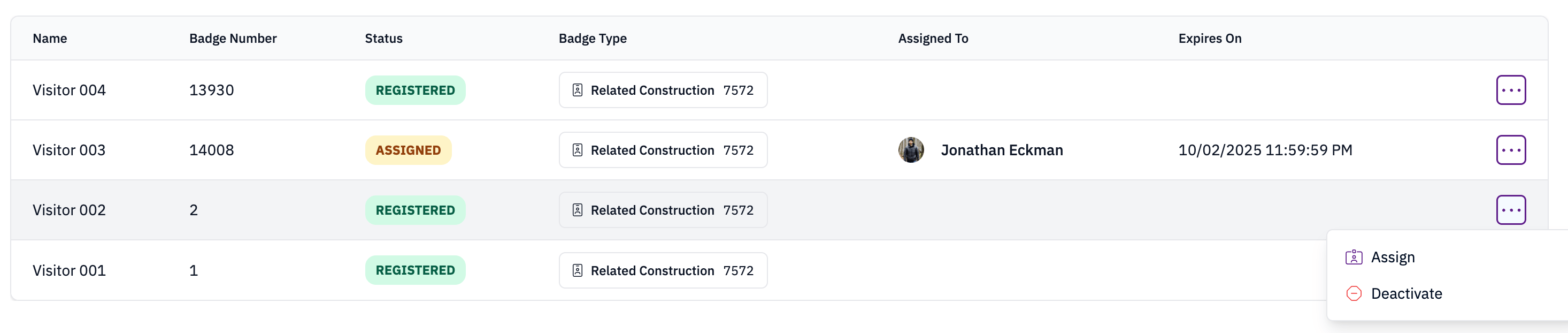
Reprint a badge
If a badge fails to print, you will see the reason it failed in the print modal. You can retry the print job in this modal or from the quick actions in the temporary badges list. If your jobsite has more than one printer, you can choose a different printer when retrying.