> ## Documentation Index
> Fetch the complete documentation index at: https://help.useodin.com/llms.txt
> Use this file to discover all available pages before exploring further.
# Send announcements
> Send auto-translated announcements with images to your workforce via SMS or email
Send SMS or email announcements to workers on your jobsites with support for long messages, image attachments, and flexible delivery timing. Announcements can be sent from the **web app** or the **mobile app**.
## Send an announcement
From the left-hand navigation, click on **Announcements** right below **Jobsites**. Click **+ Add Announcement** to start a new announcement.
Choose which jobsite(s) to target and select between **SMS** or **email** distribution.
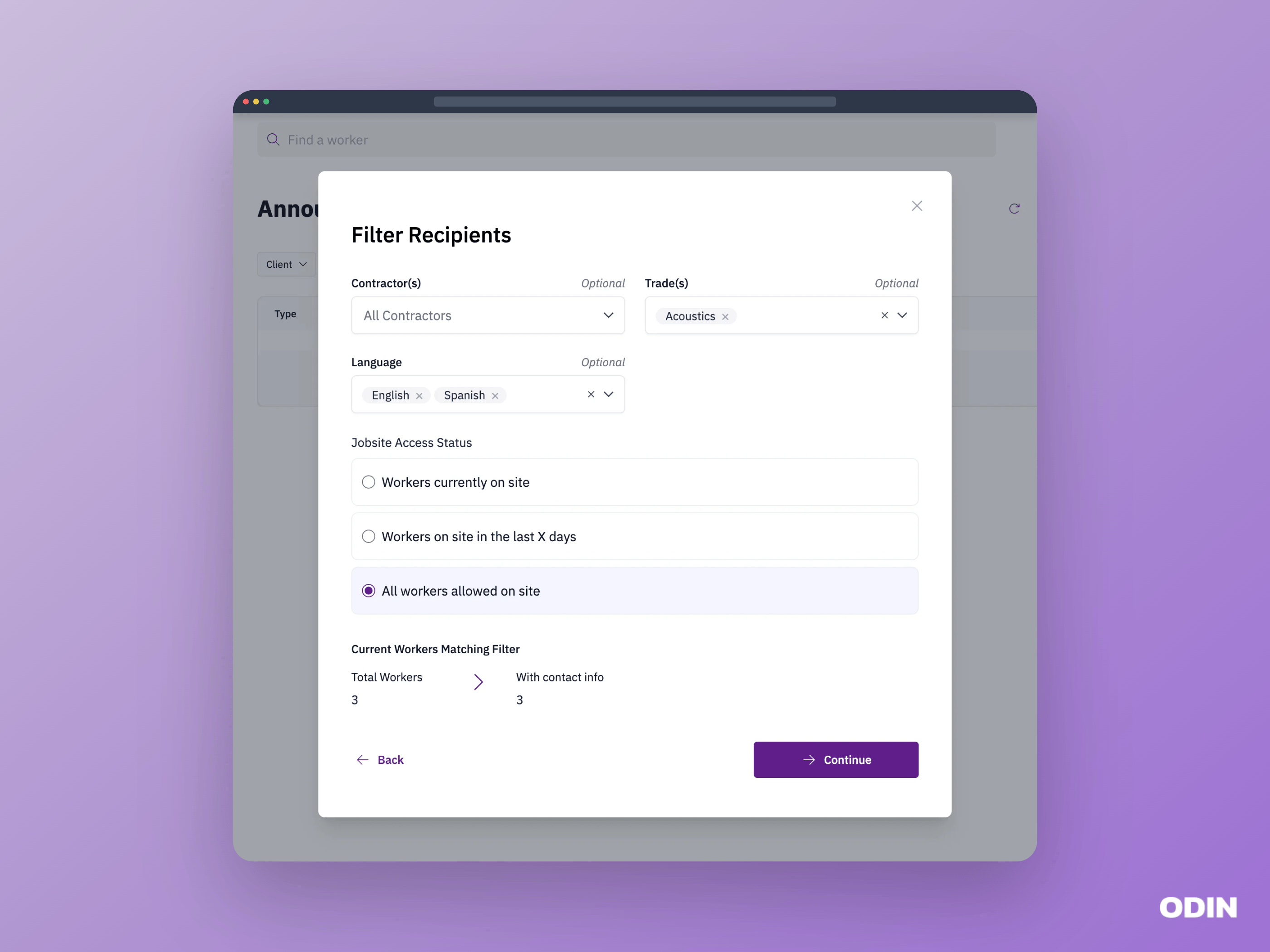
Narrow down your audience by contractor, trade, title, language, and jobsite access status. A live recipient count updates as you adjust filters.
 Write your subject and message, and optionally attach up to **5 images**. See [message limits](#message-limits) and [image attachments](#image-attachments) for details.
Review your announcement details and choose when to send — **immediately** or **scheduled** for a later date and time. See [delivery timing](#delivery-timing) for details.
Tap the **toolbox** icon, then select **Announcements**. Tap **Make announcement** to start a new announcement.
Choose which jobsite(s) to target and select between **SMS** or **email** distribution.
Narrow down your audience by contractor, trade, title, language, and jobsite access status. A live recipient count updates as you adjust filters.
Write your subject and message, and optionally attach an image from your photo library, files, or camera. See [message limits](#message-limits) and [image attachments](#image-attachments) for details.
Review your announcement details and choose when to send — **immediately** or **scheduled** for a later date and time. See [delivery timing](#delivery-timing) for details.
## Message limits
Select between **SMS** and **email** distribution for your announcement:
* **SMS** - up to **1,500 characters**.
* **Email** - up to **2,000 characters**.
## Image attachments
You can attach up to **5 images** to your announcement. Only image files (e.g. PNG, JPG) are accepted. Attached images will be included in both SMS and email announcements.
## Delivery timing
Choose when to send your announcement:
* **Immediate** - sends the announcement right away.
* **Scheduled** - enter a delivery date and time to send the announcement later. Recipient filters will be applied to workers on your jobsite at the time of sending.
## Automatically translate announcements
Announcements are automatically translated into each worker's preferred language. Write your message once in English and every recipient will receive it in the language they selected during onboarding.
## Filtering options
Narrow down your audience using any combination of the following filters:
* **Contractor** - select one or more contractors to target their workers.
* **Trade** - filter by one or more trades.
* **Title** - filter by one or more job titles, such as Foreman or Electrician. If no titles are selected, the announcement is sent to all titles.
* **Language** - filter by worker language preference.
* **Jobsite access status** - choose which workers to reach based on their site access:
* **Workers currently on site** - only workers who are checked in right now.
* **Workers on site in the last X days** - workers who have been on site within a number of days you specify.
* **All workers allowed on site** - every worker with active site access, regardless of current attendance.
A live recipient count updates as you adjust filters, showing how many workers will receive the announcement.
## View announcement history
After an announcement has been sent, you can view it in the announcement history list. If images were attached, they will be displayed alongside the message content.
Write your subject and message, and optionally attach up to **5 images**. See [message limits](#message-limits) and [image attachments](#image-attachments) for details.
Review your announcement details and choose when to send — **immediately** or **scheduled** for a later date and time. See [delivery timing](#delivery-timing) for details.
Tap the **toolbox** icon, then select **Announcements**. Tap **Make announcement** to start a new announcement.
Choose which jobsite(s) to target and select between **SMS** or **email** distribution.
Narrow down your audience by contractor, trade, title, language, and jobsite access status. A live recipient count updates as you adjust filters.
Write your subject and message, and optionally attach an image from your photo library, files, or camera. See [message limits](#message-limits) and [image attachments](#image-attachments) for details.
Review your announcement details and choose when to send — **immediately** or **scheduled** for a later date and time. See [delivery timing](#delivery-timing) for details.
## Message limits
Select between **SMS** and **email** distribution for your announcement:
* **SMS** - up to **1,500 characters**.
* **Email** - up to **2,000 characters**.
## Image attachments
You can attach up to **5 images** to your announcement. Only image files (e.g. PNG, JPG) are accepted. Attached images will be included in both SMS and email announcements.
## Delivery timing
Choose when to send your announcement:
* **Immediate** - sends the announcement right away.
* **Scheduled** - enter a delivery date and time to send the announcement later. Recipient filters will be applied to workers on your jobsite at the time of sending.
## Automatically translate announcements
Announcements are automatically translated into each worker's preferred language. Write your message once in English and every recipient will receive it in the language they selected during onboarding.
## Filtering options
Narrow down your audience using any combination of the following filters:
* **Contractor** - select one or more contractors to target their workers.
* **Trade** - filter by one or more trades.
* **Title** - filter by one or more job titles, such as Foreman or Electrician. If no titles are selected, the announcement is sent to all titles.
* **Language** - filter by worker language preference.
* **Jobsite access status** - choose which workers to reach based on their site access:
* **Workers currently on site** - only workers who are checked in right now.
* **Workers on site in the last X days** - workers who have been on site within a number of days you specify.
* **All workers allowed on site** - every worker with active site access, regardless of current attendance.
A live recipient count updates as you adjust filters, showing how many workers will receive the announcement.
## View announcement history
After an announcement has been sent, you can view it in the announcement history list. If images were attached, they will be displayed alongside the message content.