> ## Documentation Index
> Fetch the complete documentation index at: https://help.useodin.com/llms.txt
> Use this file to discover all available pages before exploring further.
# Self-onboarding
> How workers self-onboard by scanning a jobsite QR code and completing onboarding steps
Self-onboarding lets workers onboard themselves by scanning a jobsite QR code and completing the required steps on their own device. Once complete, a supervisor [reviews and completes the onboarding](/onboard-workers/review-complete-onboarding).
Any worker with the jobsite QR code or onboarding link can self-onboard. Sharing and managing the jobsite QR code and onboarding links requires one of the following roles: Jobsite Admin, Contractor Admin, or Contractor Foreman.
## 1. Worker opens the self-onboarding link
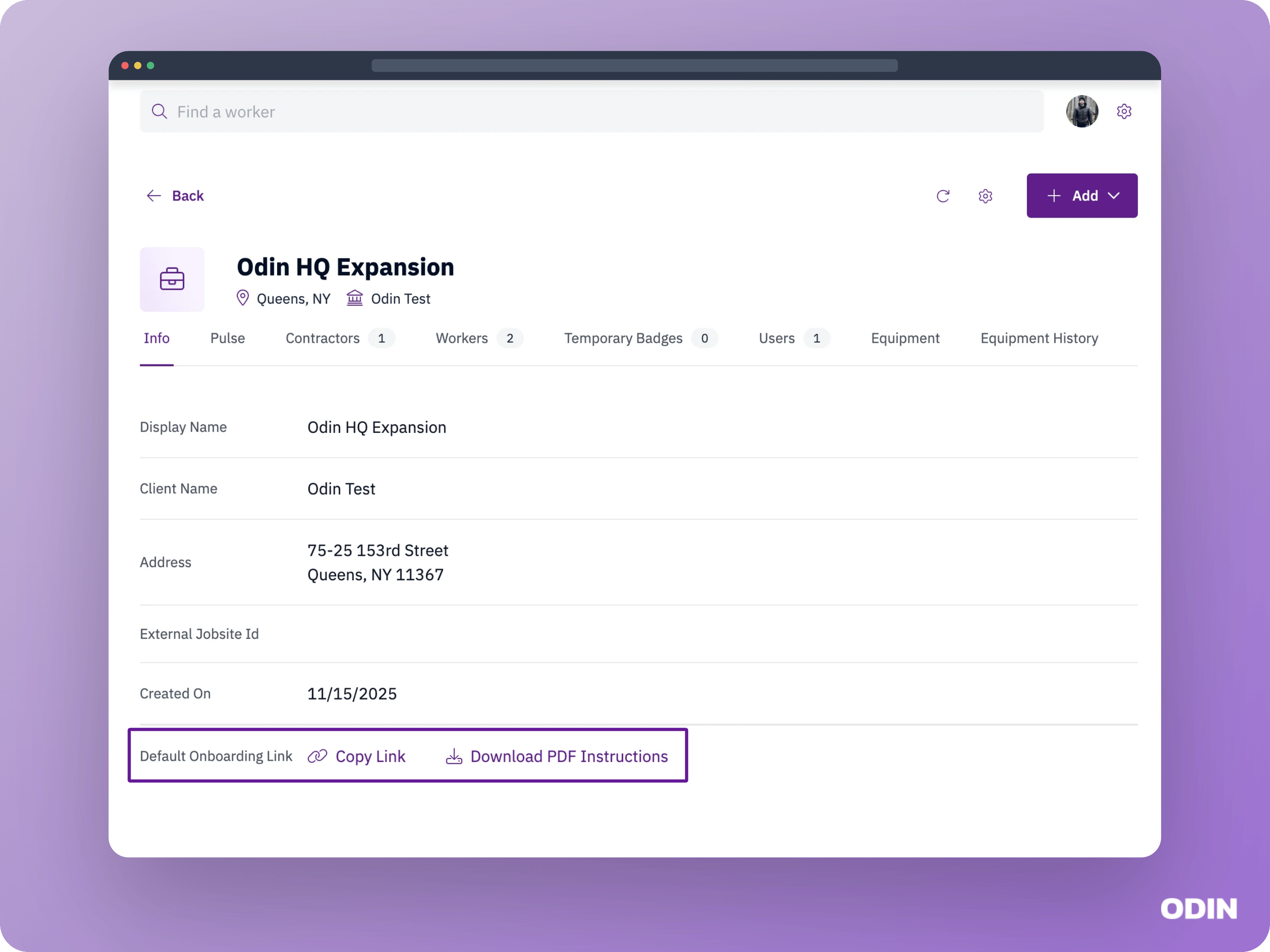
The worker receives and opens the self-onboarding link for a specific jobsite. This can be retrieved from the jobsite in the portal if needed.
 ## 2. Verify the worker's identity
The worker enters their mobile phone number and receives a one time passcode (OTP) to confirm their identity. If the worker already has a profile in the system, they are matched to it. If not, a new profile is created.
## 3. Determine the worker's contractor
Depending on your jobsite's configuration, the worker may be asked to select their contractor during self-onboarding. If this step is enabled, the worker chooses from a list of contractors assigned to the jobsite. If not, the contractor is selected later during [onboarding review](/onboard-workers/review-complete-onboarding). This is configured as part of your [onboarding design](/onboard-workers/customizing-onboarding).
## 4. Complete the configured onboarding steps
The onboarding process is started and is visible in the portal in the **Self-onboarding** status. The worker steps through the onboarding forms, providing the information the site has been configured to collect. See [Onboarding design](/onboard-workers/customizing-onboarding#onboarding-step-examples) for examples of what workers may see.
Once complete, the onboarding moves to the **Not started** status and is ready to be [reviewed](/onboard-workers/review-complete-onboarding).
## Outcomes
When a worker finishes self-onboarding, they'll see one of the following outcomes depending on their profile and jobsite configuration.
### Self-onboarding complete
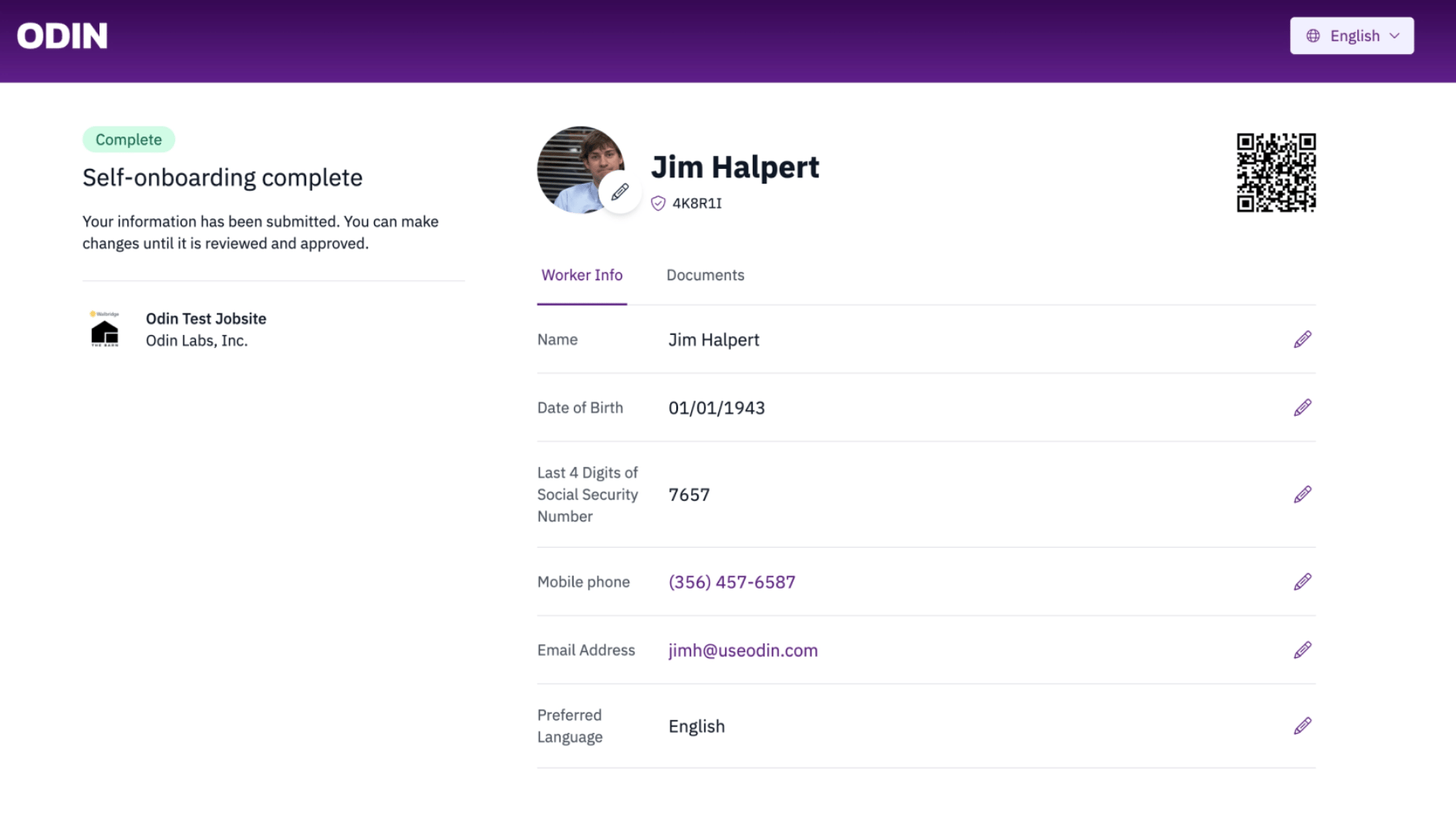
When self-onboarding completes successfully, the worker sees a confirmation screen where they can review the information they provided. The worker can make changes until their onboarding is reviewed and approved.
## 2. Verify the worker's identity
The worker enters their mobile phone number and receives a one time passcode (OTP) to confirm their identity. If the worker already has a profile in the system, they are matched to it. If not, a new profile is created.
## 3. Determine the worker's contractor
Depending on your jobsite's configuration, the worker may be asked to select their contractor during self-onboarding. If this step is enabled, the worker chooses from a list of contractors assigned to the jobsite. If not, the contractor is selected later during [onboarding review](/onboard-workers/review-complete-onboarding). This is configured as part of your [onboarding design](/onboard-workers/customizing-onboarding).
## 4. Complete the configured onboarding steps
The onboarding process is started and is visible in the portal in the **Self-onboarding** status. The worker steps through the onboarding forms, providing the information the site has been configured to collect. See [Onboarding design](/onboard-workers/customizing-onboarding#onboarding-step-examples) for examples of what workers may see.
Once complete, the onboarding moves to the **Not started** status and is ready to be [reviewed](/onboard-workers/review-complete-onboarding).
## Outcomes
When a worker finishes self-onboarding, they'll see one of the following outcomes depending on their profile and jobsite configuration.
### Self-onboarding complete
When self-onboarding completes successfully, the worker sees a confirmation screen where they can review the information they provided. The worker can make changes until their onboarding is reviewed and approved.
 On the supervisor side, the onboarding moves to the **Not started** status and is ready to be [reviewed](/onboard-workers/review-complete-onboarding).
### Already onboarded
A worker might see the following message during self-onboarding:
> Your onboarding info is under review or already approved. Ask on-site Odin staff or your supervisor for next steps.
This appears when the worker already has an onboarding in progress or completed on this jobsite. Odin does not allow the worker to restart or change it through self-onboarding.
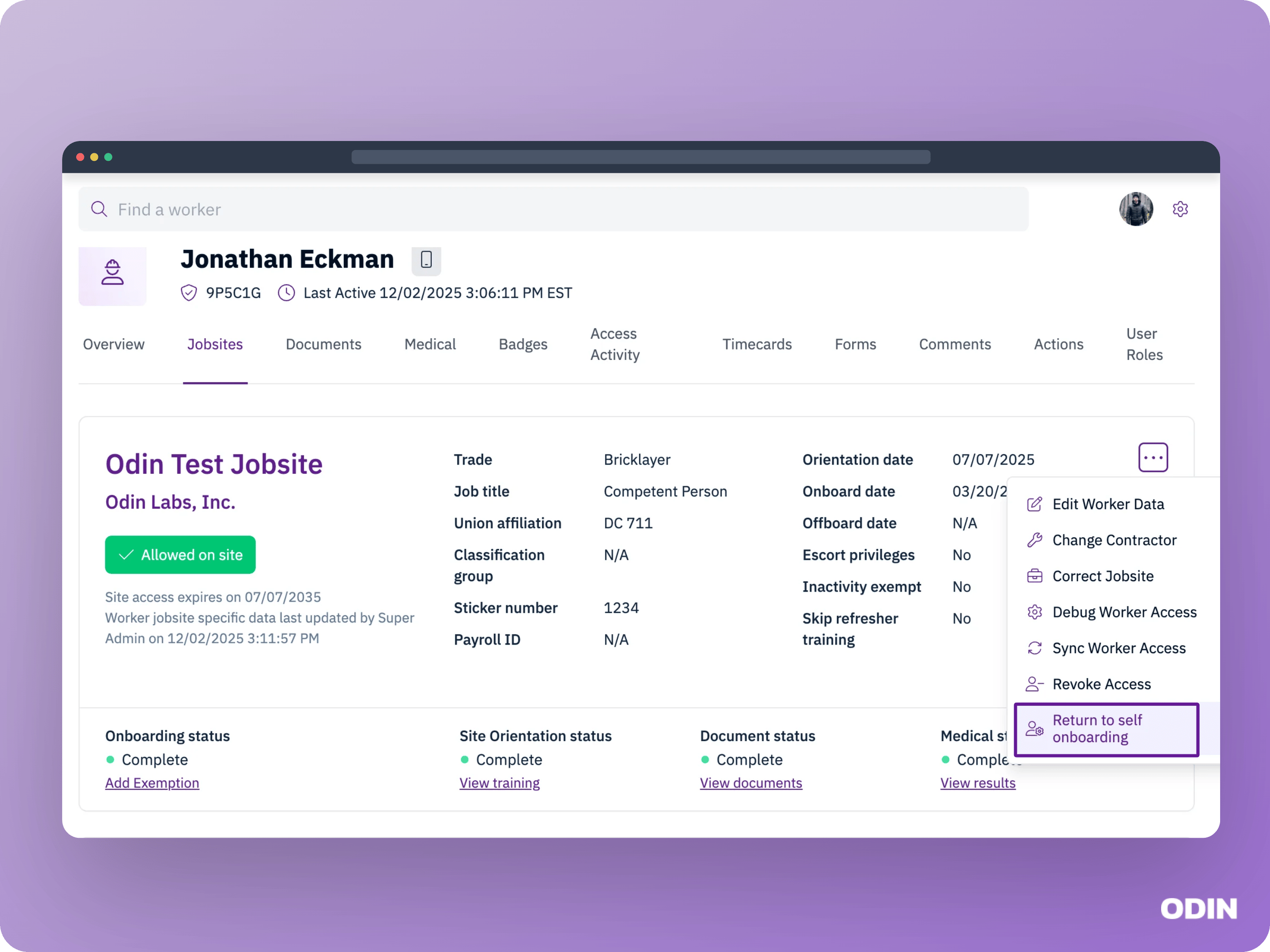
If you need to return the worker to self-onboarding, you can do so using the **Return to self-onboarding** action on the jobsite.
On the supervisor side, the onboarding moves to the **Not started** status and is ready to be [reviewed](/onboard-workers/review-complete-onboarding).
### Already onboarded
A worker might see the following message during self-onboarding:
> Your onboarding info is under review or already approved. Ask on-site Odin staff or your supervisor for next steps.
This appears when the worker already has an onboarding in progress or completed on this jobsite. Odin does not allow the worker to restart or change it through self-onboarding.
If you need to return the worker to self-onboarding, you can do so using the **Return to self-onboarding** action on the jobsite.
 ### Assistance needed
A worker might see the following message during self-onboarding:
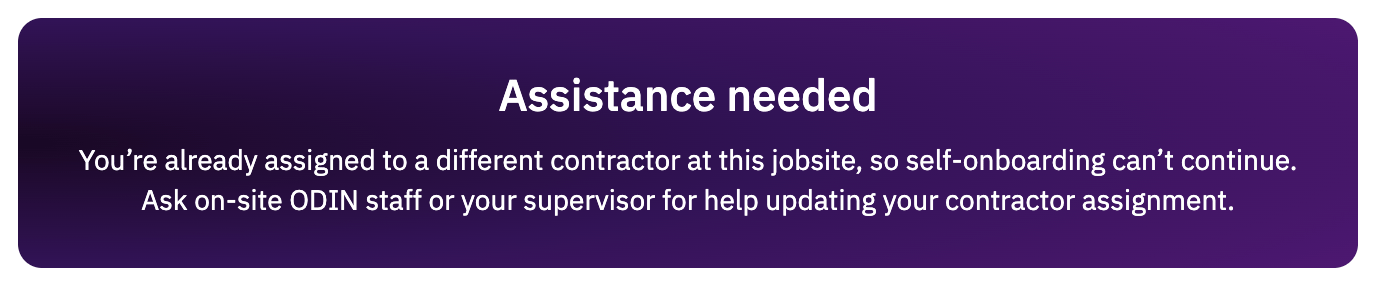
> You're already assigned to a different contractor at this jobsite, so self-onboarding can't continue. Ask on-site Odin staff or your supervisor for help updating your contractor assignment.
This appears when the worker is already assigned to a contractor on the jobsite and attempts to self-onboard under a different contractor. Because workers can only be assigned to a single contractor per jobsite, self-onboarding stops and directs the worker to on-site staff for help.
### Assistance needed
A worker might see the following message during self-onboarding:
> You're already assigned to a different contractor at this jobsite, so self-onboarding can't continue. Ask on-site Odin staff or your supervisor for help updating your contractor assignment.
This appears when the worker is already assigned to a contractor on the jobsite and attempts to self-onboard under a different contractor. Because workers can only be assigned to a single contractor per jobsite, self-onboarding stops and directs the worker to on-site staff for help.