> ## Documentation Index
> Fetch the complete documentation index at: https://help.useodin.com/llms.txt
> Use this file to discover all available pages before exploring further.
# Assign a QR code sticker badge
> Assign a QR code sticker to a worker so they can clock in and out of a jobsite
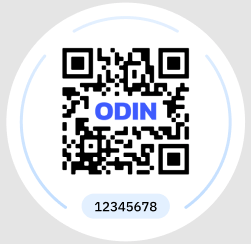
QR code stickers can be attached to hardhats or badges and used as a method for clocking workers in and out of a jobsite.
 Click **+ Add New Badge** from the worker's **Profile > Badges** tab, then select **Assign a QR code sticker**.
Type in the QR code number and select **Assign QR Code**. This number must match the physical sticker, because the number is encoded into the QR payload.
Provide the sticker to the worker. The worker should place the sticker on their hardhat or badge, then scan it at a kiosk or using the Odin mobile app.
Running low on QR code stickers? You can [order more supplies](/hardware/order-supplies) from Odin.
Click **+ Add New Badge** from the worker's **Profile > Badges** tab, then select **Assign a QR code sticker**.
Type in the QR code number and select **Assign QR Code**. This number must match the physical sticker, because the number is encoded into the QR payload.
Provide the sticker to the worker. The worker should place the sticker on their hardhat or badge, then scan it at a kiosk or using the Odin mobile app.
Running low on QR code stickers? You can [order more supplies](/hardware/order-supplies) from Odin.