> ## Documentation Index
> Fetch the complete documentation index at: https://help.useodin.com/llms.txt
> Use this file to discover all available pages before exploring further.
# Offboard a worker
> Remove a worker from a jobsite when their work is complete or they have been laid off
When a worker's assignment on a jobsite is finished, offboarding removes their access and marks them as inactive on the project.
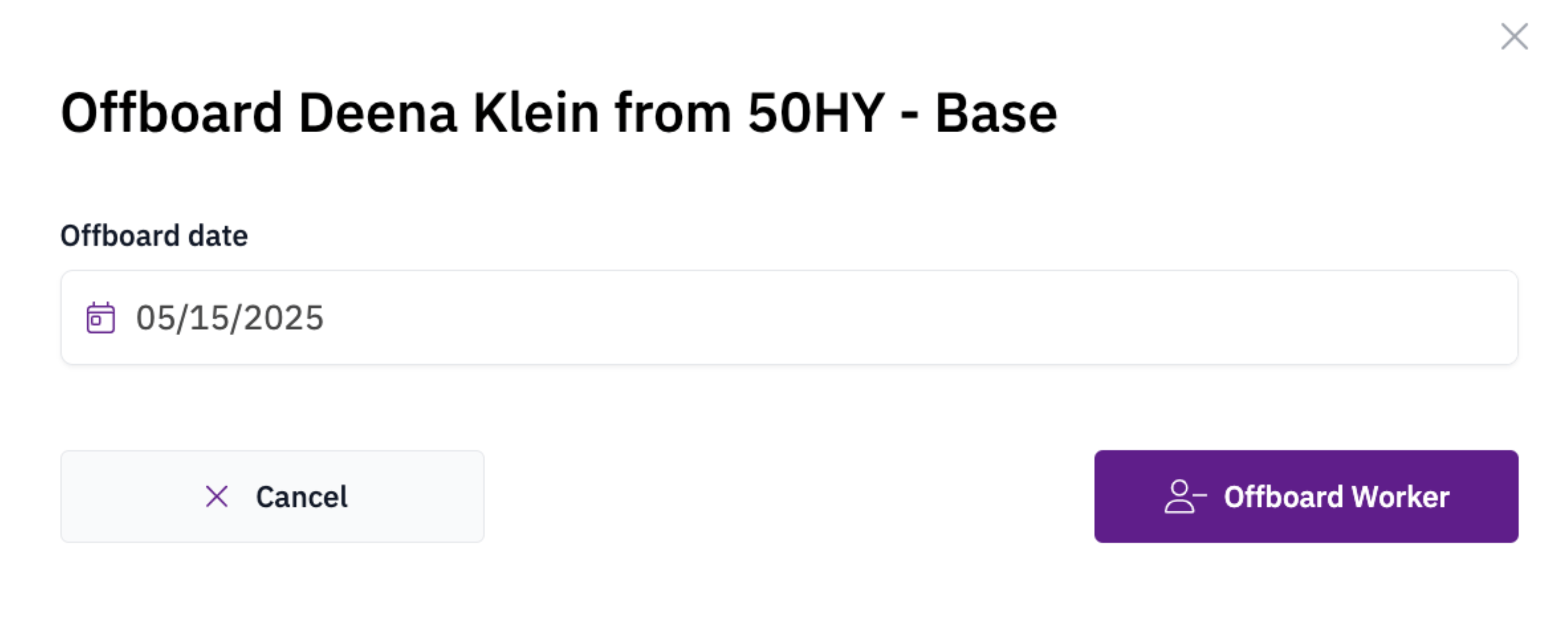
From the worker's **Profile > Jobsites** tab, click the **"..."** menu next to the jobsite and select **Revoke Access**, then choose **Offboard**. Enter the worker's last day of work to complete the offboarding.
 ## Automatic offboarding
Odin can automatically offboard workers after a period of inactivity. The inactivity threshold is configured per jobsite. Workers with sporadic schedules, such as project executives, can be exempted from this rule.
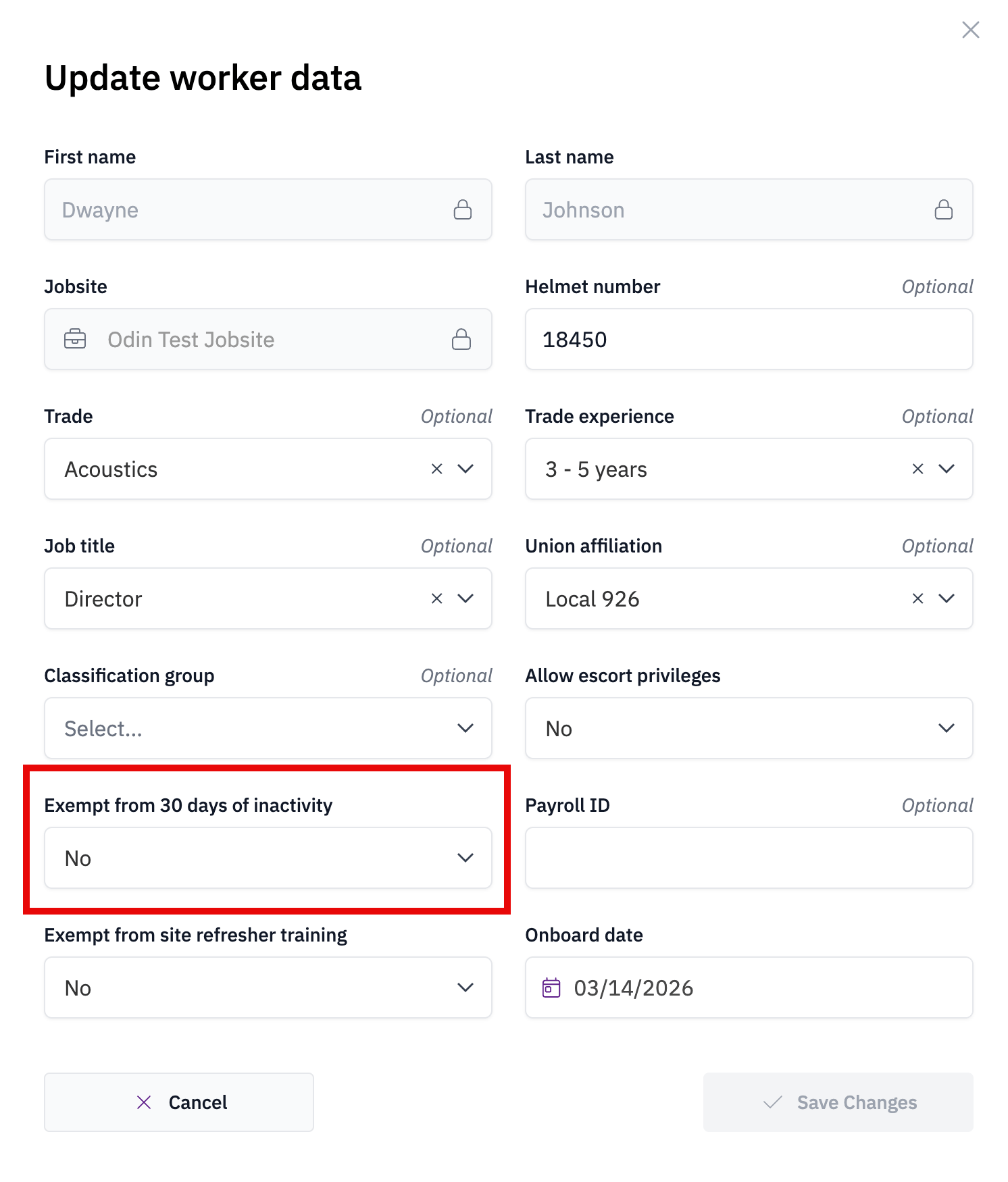
To exempt a worker, open the **"..."** menu on their profile, select **Edit worker data**, and mark the worker as exempt from the **30 Days of Inactivity** rule.
## Automatic offboarding
Odin can automatically offboard workers after a period of inactivity. The inactivity threshold is configured per jobsite. Workers with sporadic schedules, such as project executives, can be exempted from this rule.
To exempt a worker, open the **"..."** menu on their profile, select **Edit worker data**, and mark the worker as exempt from the **30 Days of Inactivity** rule.