> ## Documentation Index
> Fetch the complete documentation index at: https://help.useodin.com/llms.txt
> Use this file to discover all available pages before exploring further.
# Manual onboarding
> How to manually onboard a worker when self-onboarding is not available
When a worker cannot complete [self-onboarding](/onboard-workers/self-onboarding-workflow), a supervisor can onboard them manually. This involves creating the worker's profile, assigning them to a jobsite, and providing all required information on their behalf.
## 1. Search for the worker
Before creating a new profile, search for the worker using the search box in the top navigation bar or by navigating to **Workers** and searching from there. If they already exist in the system, skip to [step 3](#3-assign-the-worker-to-a-jobsite).
## 2. Create the worker's profile
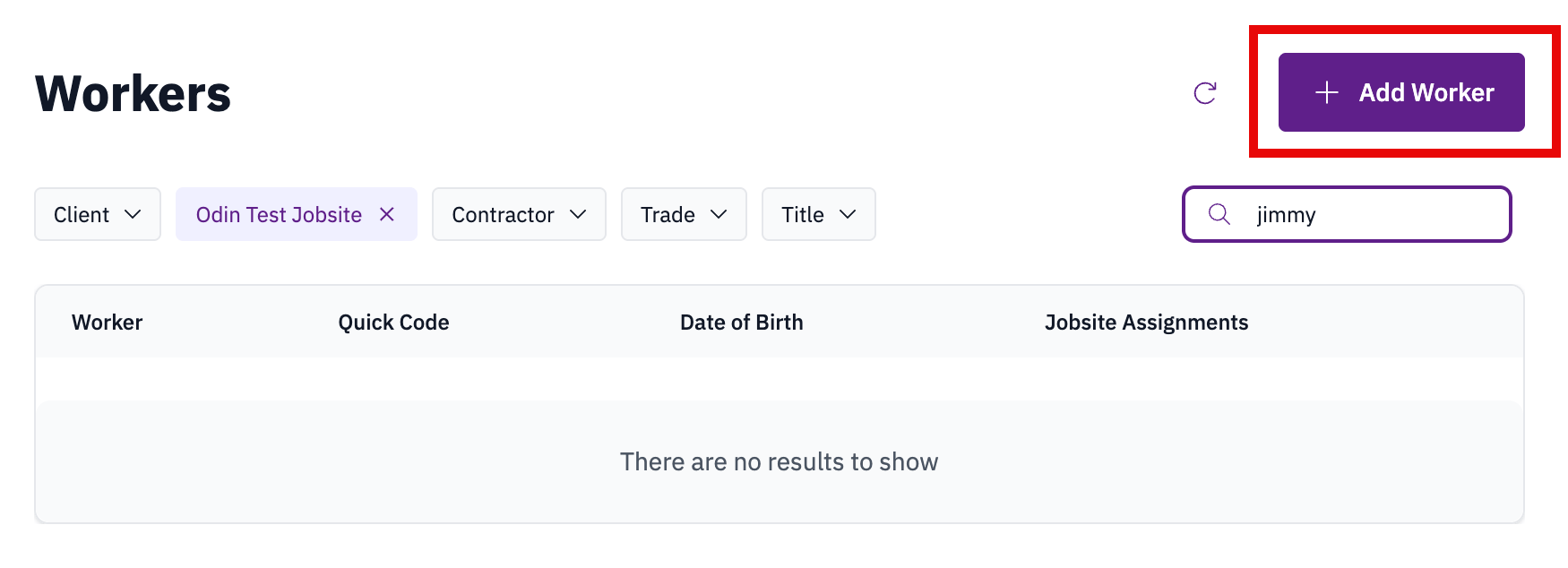
If the worker is not found, select **Add a Worker** from the **Workers** page and provide the following:
 1. Select the appropriate jobsite and contractor.
2. Enter basic information: first and last name, date of birth, and mobile phone number.
3. Complete any additional required fields, including language preference and site-specific information.
4. Select **Save** and confirm that the worker is **Allowed** on site.
## 3. Assign the worker to a jobsite
From the worker's profile, click **Assign Worker** in the top right corner. Select the **Jobsite** and **Contractor** from the dropdowns, then select **Continue**.
## 4. Complete onboarding review
Once the worker is assigned, they can proceed to [onboarding review](/onboard-workers/review-complete-onboarding) if it is enabled for the jobsite.
1. Select the appropriate jobsite and contractor.
2. Enter basic information: first and last name, date of birth, and mobile phone number.
3. Complete any additional required fields, including language preference and site-specific information.
4. Select **Save** and confirm that the worker is **Allowed** on site.
## 3. Assign the worker to a jobsite
From the worker's profile, click **Assign Worker** in the top right corner. Select the **Jobsite** and **Contractor** from the dropdowns, then select **Continue**.
## 4. Complete onboarding review
Once the worker is assigned, they can proceed to [onboarding review](/onboard-workers/review-complete-onboarding) if it is enabled for the jobsite.