> ## Documentation Index
> Fetch the complete documentation index at: https://help.useodin.com/llms.txt
> Use this file to discover all available pages before exploring further.
# Manage a worker's badges
> View a worker's badges and assign new permanent, temporary, or QR code sticker badges
Navigate to the worker's **Profile > Badges** tab to view and manage all badges associated with the worker.
The Badges table displays the following information for each badge:
* **Badge number** — the unique identifier for the badge. ID cards have no badge number, so this is blank for them.
* **Status** — whether the badge is Active or Inactive
* **Type** — the badge type, such as permanent, temporary, or ID card
* **Expiration date** — the expiration date, if the badge is temporary
## Assign a badge
You can assign a new badge from the **Badges** tab by clicking **Add Badge**.
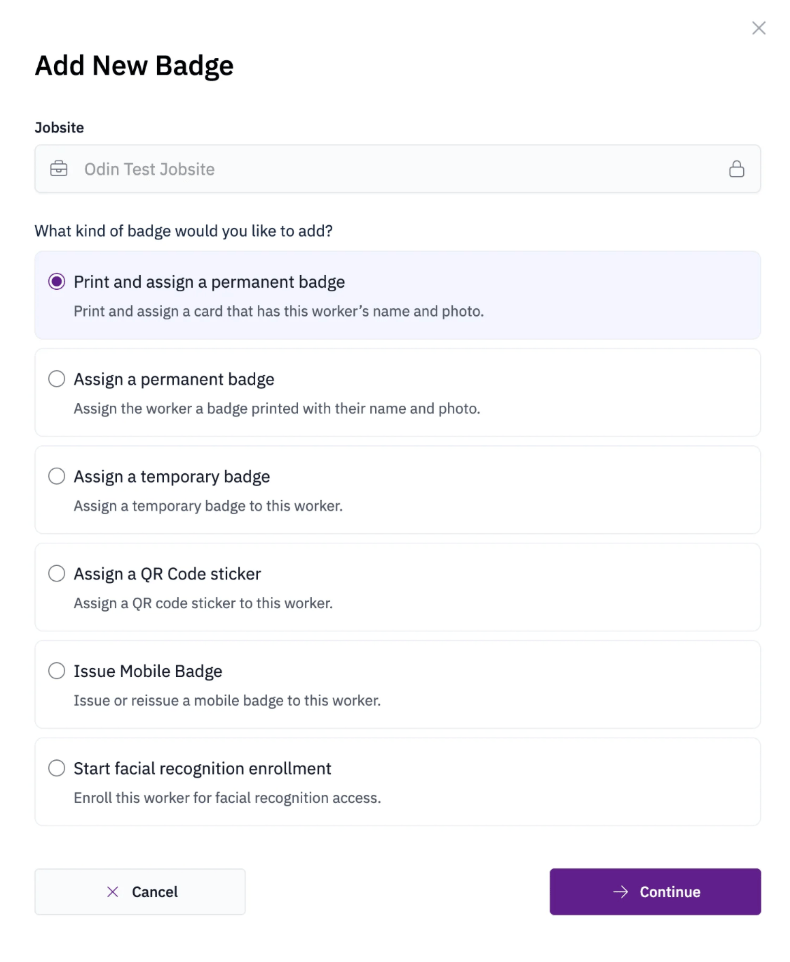 The badge types available for your jobsite are configured by your CSM on the [Odin support](/support/customer-support) team. The following credential types can be enabled for your jobsite:
* [**Permanent badge**](/onboard-workers/creating-new-badges) — a printed badge assigned to the worker for long-term use. Some permanent badges include tap technology for use with compatible card readers.
* [**Temporary badge**](/onboard-workers/temporary-badges) — a short-term badge assigned to a worker who is waiting for a permanent badge or visiting temporarily.
* [**ID card**](/onboard-workers/print-id-card) — an ID-only badge with the worker's QR code and photo, printed on a blank PVC card with no badge number. ID cards do not work with tap card readers.
* [**QR code sticker**](/onboard-workers/qr-sticker-badge) — a sticker placed on a hardhat or badge that can be scanned at a kiosk or with the Odin mobile app.
* **Mobile badge** — a digital badge issued to the worker's mobile device.
* **Facial recognition** — starts the facial recognition enrollment process for the worker.
Assigning a badge to a worker requires one of the following roles: Jobsite Admin, Site Safety Manager, Security Supervisor, or Security.
## Deactivate a badge
Deactivating a badge immediately revokes the worker's access to the jobsite. This is typically needed when a badge is lost, stolen, or damaged. To deactivate, click the **"..."** menu next to the badge and select **Deactivate Badge**.
## Reactivate a badge
If a deactivated badge is recovered or a worker returns to the jobsite, you can restore access by clicking the **"..."** menu next to the badge and selecting **Reactivate Badge**.
The badge types available for your jobsite are configured by your CSM on the [Odin support](/support/customer-support) team. The following credential types can be enabled for your jobsite:
* [**Permanent badge**](/onboard-workers/creating-new-badges) — a printed badge assigned to the worker for long-term use. Some permanent badges include tap technology for use with compatible card readers.
* [**Temporary badge**](/onboard-workers/temporary-badges) — a short-term badge assigned to a worker who is waiting for a permanent badge or visiting temporarily.
* [**ID card**](/onboard-workers/print-id-card) — an ID-only badge with the worker's QR code and photo, printed on a blank PVC card with no badge number. ID cards do not work with tap card readers.
* [**QR code sticker**](/onboard-workers/qr-sticker-badge) — a sticker placed on a hardhat or badge that can be scanned at a kiosk or with the Odin mobile app.
* **Mobile badge** — a digital badge issued to the worker's mobile device.
* **Facial recognition** — starts the facial recognition enrollment process for the worker.
Assigning a badge to a worker requires one of the following roles: Jobsite Admin, Site Safety Manager, Security Supervisor, or Security.
## Deactivate a badge
Deactivating a badge immediately revokes the worker's access to the jobsite. This is typically needed when a badge is lost, stolen, or damaged. To deactivate, click the **"..."** menu next to the badge and select **Deactivate Badge**.
## Reactivate a badge
If a deactivated badge is recovered or a worker returns to the jobsite, you can restore access by clicking the **"..."** menu next to the badge and selecting **Reactivate Badge**.