> ## Documentation Index
> Fetch the complete documentation index at: https://help.useodin.com/llms.txt
> Use this file to discover all available pages before exploring further.
# Navigate the dashboard
> See all your jobsites at a glance, check key workforce metrics, and open the site you need
When you sign in to Odin, the dashboard shows every jobsite you have access to, so you can scan the state of your sites and jump straight into the one you need.
## See key details for each site
Each jobsite shows its site photo, city and state, and three workforce metrics that update throughout the day:
* **Workers with access** — the total number of workers cleared to be on the site.
* **On site now** — workers currently checked in.
* **Onboarding** — workers in the process of onboarding onto the site.
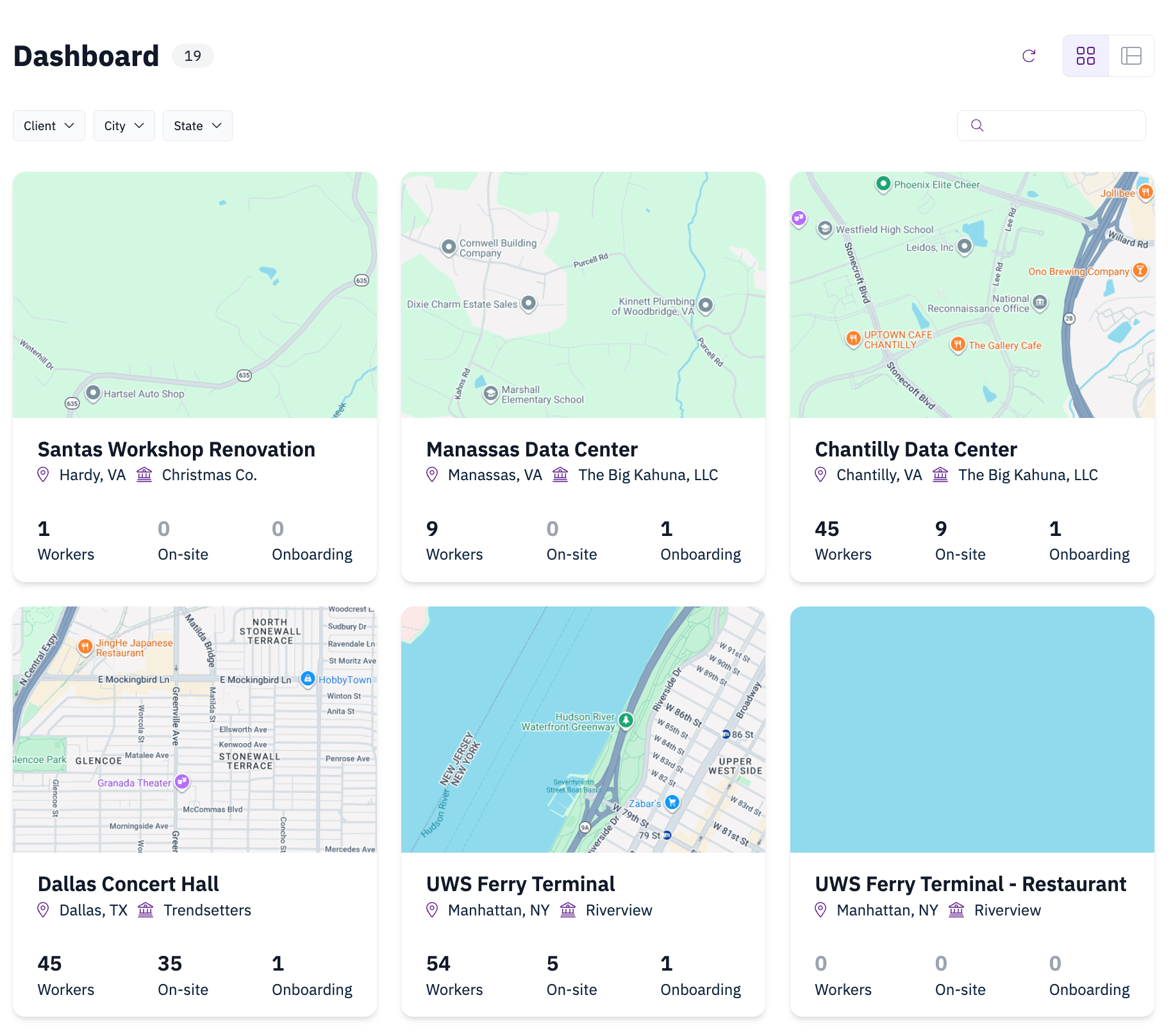 Select a jobsite to open it.
## Find a specific jobsite
When you manage many sites, use the controls at the top of the dashboard to narrow the list:
* **Search** by jobsite name.
* **Filter** to show only the sites that match what you're looking for.
* **Sort** to reorder the sites.
You can also switch to a **list view** for a denser, row-by-row layout of the same sites and metrics.
Select a jobsite to open it.
## Find a specific jobsite
When you manage many sites, use the controls at the top of the dashboard to narrow the list:
* **Search** by jobsite name.
* **Filter** to show only the sites that match what you're looking for.
* **Sort** to reorder the sites.
You can also switch to a **list view** for a denser, row-by-row layout of the same sites and metrics.