> ## Documentation Index
> Fetch the complete documentation index at: https://help.useodin.com/llms.txt
> Use this file to discover all available pages before exploring further.
# Record a manual access event
> Manually create an access event when a worker cannot check in or out themselves
Odin automatically creates access events each time a worker clocks in or out of a jobsite. Jobsite admins can manually create events when workers forget or cannot complete this action themselves.
Access events cannot be modified after creation. To correct an erroneous entry, archive it and create a new one.
## Create an access event
Search for the worker or choose them from the worker list.
Navigate to the **Access Activity** section of the worker's profile.
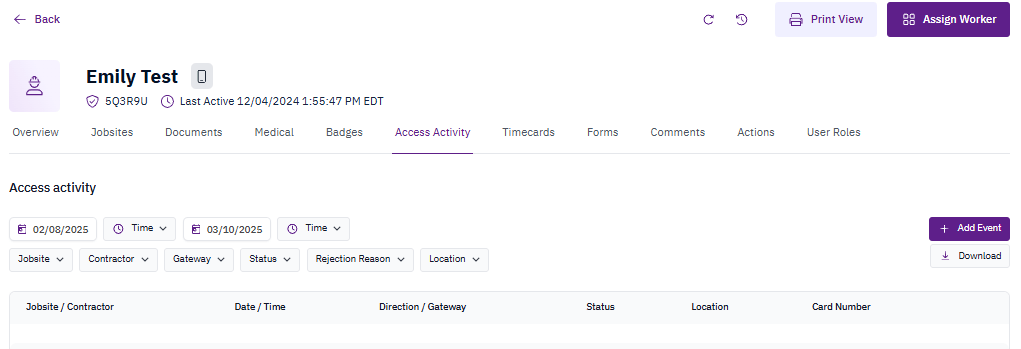 Click the **+Add Event** button to begin creating a new access event.
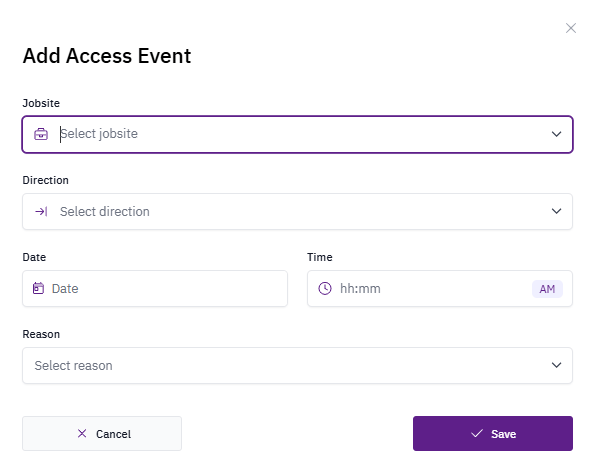
Fill in the required fields and select **Save** to record the clock-in or clock-out event.
Click the **+Add Event** button to begin creating a new access event.
Fill in the required fields and select **Save** to record the clock-in or clock-out event.
 ## Archive an access event
Access events cannot be edited. To correct an erroneous entry, archive it instead by clicking the **"..."** menu next to the event and selecting **Archive Access Event**.
## Archive an access event
Access events cannot be edited. To correct an erroneous entry, archive it instead by clicking the **"..."** menu next to the event and selecting **Archive Access Event**.